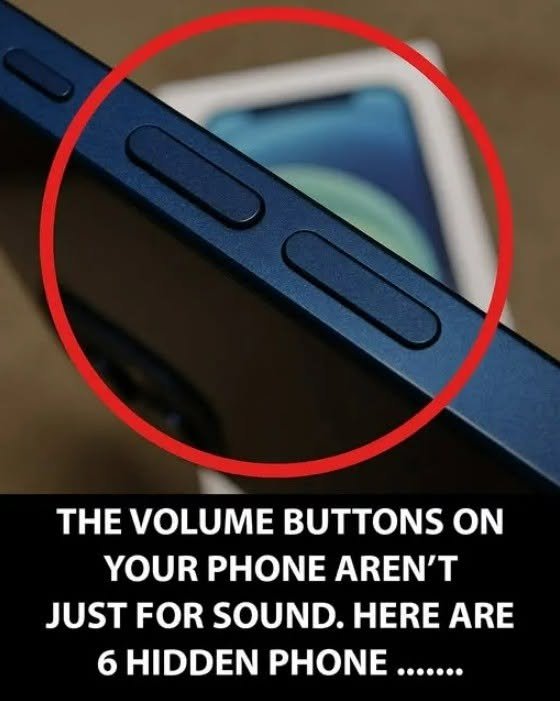
Smartphones are packed with advanced capabilities, time-saving shortcuts, and handy diagnostic features that most people never discover. Beyond the basic swipe-and-tap interface, your phone likely has several clever built-in tools waiting to be unlocked.
Here are some of the most useful hidden smartphone tricks that can upgrade your daily routine, boost your privacy, and save you time:
1. Turn Your Keyboard Into a Precise Trackpad
-
The Trick: If you make a typo in the middle of a long text or email, trying to tap precisely between two tiny letters with your finger can be frustrating.
-
How to Use It:
-
On iPhone: Press and hold down the Spacebar until the keyboard turns blank and gray. Then, slide your finger around to move the cursor smoothly across the text like a trackpad.
-
On Android (Gboard): Simply press and hold your finger on the Spacebar and drag left or right to glide the cursor effortlessly through your sentence.
-
2. Take a Screenshot of an Entire Webpage (Scrolling Screenshot)
-
The Trick: Instead of taking four or five separate screenshots of a long recipe, article, or receipt, you can capture the entire page in one single image.
-
How to Use It:
-
On iPhone: Take a standard screenshot (Power + Volume Up), tap the preview thumbnail in the bottom left corner, and select the Full Page tab at the top before saving it as a PDF.
-
On Android: Take a screenshot and look for the “Scroll capture” (or expand arrows) icon in the floating toolbar that appears at the bottom of the screen. Tap it to automatically stitch the page together.
-
3. Share Your Wi-Fi Password Instantly Without Saying a Word
-
The Trick: When guests come over and ask for your Wi-Fi password, you don’t need to dig through a sticky note or read out a complicated string of characters.
-
How to Use It:
-
On iPhone: Go to Settings > Wi-Fi, make sure you are connected, and tap your network. A prompt will appear saying “Share Password.” When your friend holds their iPhone near yours, a secure pop-up lets them connect instantly.
-
On Android: Go to Settings > Network & Internet > Wi-Fi, tap your connected network, and select Share. This generates a QR code that your friend can scan with their phone camera to join automatically.
-
4. Create Custom Back-Tap Shortcuts
-
The Trick: You can program the entire back panel of your phone to act as an invisible, touch-sensitive button for your most-used actions (like taking a screenshot, opening the flashlight, or launching your camera).
-
How to Use It:
-
On iPhone: Go to Settings > Accessibility > Touch > Back Tap. Choose either Double Tap or Triple Tap, and assign an action like “Flashlight” or “Screenshot.” Now, simply tapping the Apple logo on the back of your phone triggers it instantly.
-
On Android: While native support varies by manufacturer (Pixel phones feature “Quick Tap” under Settings > System > Gestures), you can also download trusted accessibility apps to customize gesture taps.
-
5. Lock Apps or Screen to Prevent Snooping (Guided Access / Pin App)
-
The Trick: If you need to hand your phone to someone to show them a photo or let a child play a game, you can lock them strictly inside that single app so they can’t swipe through your personal messages or photos.
-
How to Use It:
-
On iPhone (Guided Access): Go to Settings > Accessibility > Guided Access and turn it on. Open the app you want to share, triple-click the side (or home) button, and circle areas of the screen you want to disable.
-
On Android (App Pinning): Go to Settings > Security > Advanced > App Pinning (or Biometrics & Security). Open your recent apps menu, tap the app icon at the top of the window, and select Pin. To unpin, you’ll need to enter your lock screen PIN or fingerprint.
-
Pro-Tip: Clean Up Your Storage Hidden Files
If your phone is running out of space even after deleting photos, check your messaging apps. Apps like WhatsApp and Telegram often automatically download and save every single video, voice note, and photo sent in group chats directly to your phone’s local storage. Diving into your app storage settings to toggle off “Save to Camera Roll” can instantly reclaim gigabytes of space!
