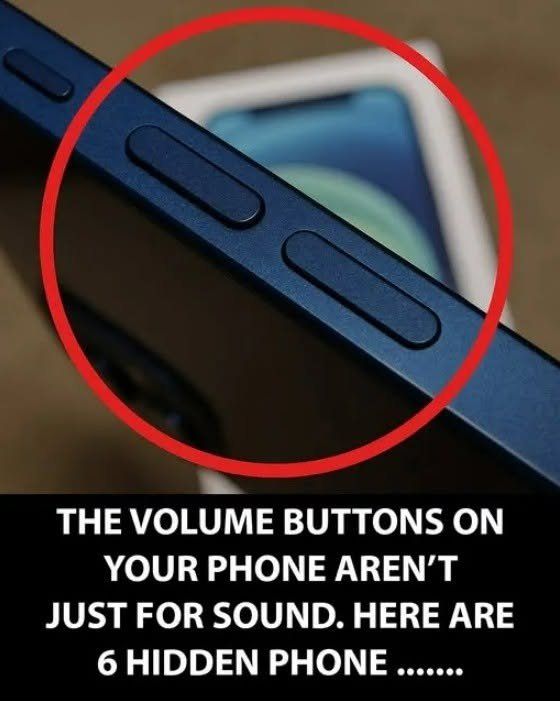
When tech and lifestyle clickbait flashes headlines like “Hidden Smartphone Tricks You Probably Didn’t Know You Could Use,” they love to package everyday operating system features as secret hacking sorcery. They want you to believe that engineers hid clandestine backdoors or magical shortcuts that instantly transform your phone into a sci-fi supercomputer.
From a software engineering, user experience (UX), and device efficiency perspective, these “hidden tricks” aren’t secret easter eggs—they are robust built-in accessibility, productivity, and navigation features designed right into iOS and Android. Understanding how to leverage them simply helps you use your device with greater fluency.
The Reality Behind “Hidden” Device Features
Why are these features tucked away instead of plastered on the home screen?
-
Interface Simplicity vs. Power User Tools: Operating system developers design default interfaces to be clean and intuitive for the average user. Advanced shortcuts, automation triggers, and accessibility gestures are nested in settings menus to prevent cluttering the primary user experience.
-
Platform Convergence: Both Apple (iOS) and Google (Android) frequently adopt features originally pioneered by power users or third-party apps, integrating them natively into system updates.
-
The Power of Hardware Shortcuts: Most modern smartphones include built-in hardware sensors (accelerometers, LiDAR, haptic touch layers) that can be remapped for clever secondary actions beyond their primary function.
5 Practical, High-Utility Smartphone Features Worth Knowing
Instead of obscure parlor tricks, here are five genuinely useful, built-in features on modern smartphones that streamline daily tasks:
-
1. Back Tap / Quick Tap Shortcuts
-
What it is: A system gesture that allows you to tap the physical back glass of your phone 2 or 3 times to trigger an action (like taking a screenshot, opening the flashlight, or launching a specific app).
-
How to find it: On iOS, go to Settings > Accessibility > Touch > Back Tap. On Android, check Settings > System > Gestures > Quick Tap (varying by manufacturer).
-
-
2. The Spacebar Trackpad Cursor
-
What it is: Instead of frustratingly trying to tap between two tiny letters to fix a typo, you can press and hold down the spacebar on your virtual keyboard to instantly turn it into a trackpad, allowing you to slide the cursor with precision.
-
-
3. Built-In Document Scanning (Without Third-Party Apps)
-
What it is: You don’t need a shady scanning app to digitize paperwork. The native Notes app on iOS (via the camera icon) and Google Drive on Android both feature automatic edge-detection document scanners that correct lighting and convert multi-page forms into clean PDFs instantly.
-
-
4. Sound Recognition / Audio Notifications
-
What it is: An accessibility feature that uses your phone’s microphone to listen for specific environmental sounds (like a smoke alarm, a baby crying, or a doorbell ringing) and sends an immediate visual alert to your screen.
-
How to find it: Look under Settings > Accessibility > Sound Recognition (iOS) or Notifications / Accessibility (Android).
-
-
5. Converting the Volume Buttons into Text Magnifiers or Shutter Triggers
-
What it is: In camera mode, pressing either physical volume button acts as a shutter release. In accessibility settings, you can map physical buttons to control display scaling or screen reading.
-
Evidence-Based Digital Wellness and Efficiency Tips
While mastering your device’s features is empowering, digital efficiency is equally about managing your attention:
-
Audit Your Notifications: The best smartphone trick is reclaiming your focus. Turn off non-essential push notifications for apps that demand constant attention, leaving only direct human communication and critical utility alerts active.
-
Optimize Battery Health: Avoid exposing your phone to extreme thermal environments and utilize built-in optimized battery charging modes to preserve long-term chemical lifespan.
